Internal Linking for Small Sites: A Simple Plan
Internal linking sounds technical, but it's just connecting your own pages sensibly. Here's a simple plan any small business owner can finish in an afternoon.
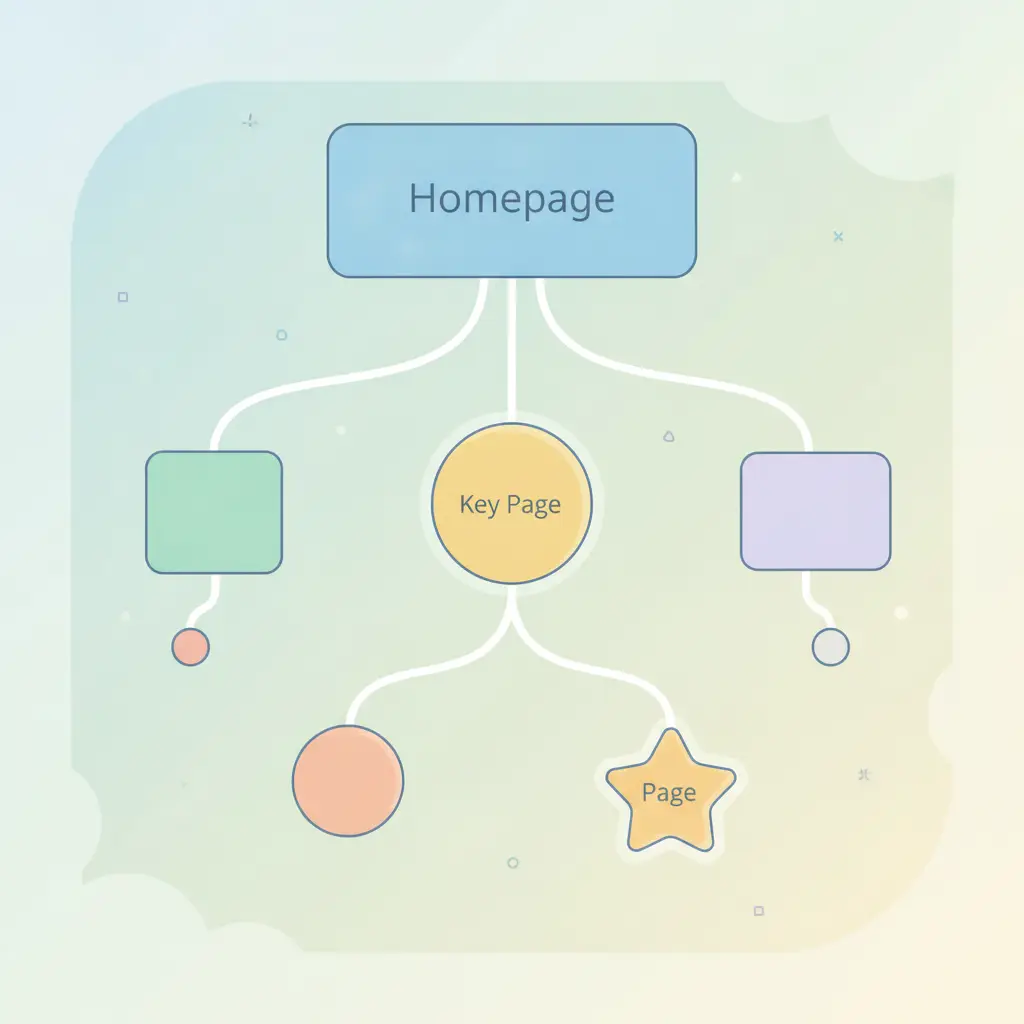
Internal linking for a small business website means adding links from one page on your site to another, so visitors and search engines can find your most important pages. The simple plan: pick your 5 to 10 money pages, link to them from related articles using descriptive words, make sure every page is reachable within a few clicks, and revisit it whenever you publish something new. You can do the first pass in an afternoon, with no tools.
Why internal links matter for a small site
Google discovers pages by following links. If a page has no links pointing to it, it's hard to find, and Google may treat it as unimportant. Links also pass context: the words you use in a link tell search engines (and AI assistants) what the destination page is about.
They help real people too. Someone reading your blog post about choosing a plumber should have an obvious next step, like your service page or contact page. Without a link, they leave.
Small sites have an advantage here. You don't have thousands of pages to untangle. A deliberate structure with a few dozen pages is very manageable.
Step 1: List your money pages
Before adding a single link, decide where you want visitors to land. Open a spreadsheet or a notebook and write down your 5 to 10 most valuable pages. For most small businesses, that looks like:
- Your main service pages or product category pages
- Your best-selling product pages (for WooCommerce shops)
- Your contact or booking page
- Your pricing page, if you have one
- Your about page, if it builds trust for buyers
These are the pages that should receive the most internal links. Everything else, like blog posts, exists partly to support them.
Step 2: Link from related content to those pages
Now go through your blog posts and other pages, and ask: does this mention something I offer or explain elsewhere? If so, add a link.
Say you run a bakery and have a post called "How to Store Sourdough". Mention your sourdough loaves in the post and link the phrase to the product page. Say you're a WooCommerce seller with an article about caring for leather boots: link to your boot category.
A few rules of thumb keep this natural:
- Link where it helps the reader. If you wouldn't click it yourself, skip it.
- Don't overdo it. A handful of relevant links per article beats 30 crammed in.
- Link both ways when it makes sense. A service page can point to a helpful guide, and the guide can point back.
If you run a shop, your product copy is a good place to start. Our guides on writing WooCommerce product descriptions that rank and optimising WooCommerce product pages are a natural example of two related articles that should point to each other.
Step 3: Write descriptive link text
The clickable words, called anchor text, matter. Compare these:
- Weak: "Click here" or "read more"
- Better: "our guide to image alt text in WordPress"
Descriptive anchor text tells readers where they're going and tells search engines what the target page covers. For instance, if you want to learn how to label pictures properly, see image SEO in WordPress: alt text and file names. You know exactly what you'll get before you click.
Keep anchors short and natural. You don't need to stuff your exact search phrase into every link. Varying the wording is fine and reads better.
Step 4: Check that nothing is buried or orphaned
An orphan page is one that no other page links to. Search engines may still find it through your sitemap, but it gets little attention. Small sites often collect orphans: old blog posts, landing pages made for a campaign, or new products nobody linked.
To find them:
- Open your sitemap or your list of published pages in WordPress.
- For each page, ask: where is this linked from?
- If the answer is "nowhere", add a link from a relevant page, or from your menu or footer if it's important.
Also aim for every important page to be reachable within about three clicks from your homepage. If a key page is hidden four or five layers deep, bring it closer with a menu item or a link from a popular page.
Your navigation menu counts as internal linking too. Keep it focused on your main sections rather than listing every page you've ever made.
Step 5: Build the habit for every new post
Internal linking isn't a one-off job. Each time you publish, spend five minutes on it:
- Add 2 to 4 links from the new post to existing relevant pages.
- Find 1 to 2 older posts where the new one fits, and link to it from there.
- Check the new post is linked from a category or hub page, such as your blog index or a topic page.
This last step is where most people slip, because going back to edit old posts feels like extra work. It's also what makes the difference between a pile of articles and a connected site.
If that sounds like a chore, it's one that can be automated. AutoXSEO for WordPress handles on-page fixes and publishes articles on a schedule, so you're not doing it all by hand.
Why this helps with AI assistants too
Tools like ChatGPT and Perplexity need to understand what your business does and which pages answer which questions. A clear web of links, with sensible anchor text, makes that easier. It's one piece of making your site readable for machines; our guide on making your website easy for AI assistants to read covers the rest.
Common mistakes to avoid
- Linking everything to everything. Too many links dilute the value of each.
- Using the same anchor for different pages. It confuses both readers and search engines.
- Leaving broken links. When you delete or rename a page, update the links pointing to it or set up a redirect.
- Forgetting new pages. Publish and link in the same sitting.
Quick afternoon checklist
- List your 5 to 10 money pages.
- Open each blog post and add a link to a relevant money page where it fits.
- Replace vague anchors like "click here" with descriptive ones.
- Find orphan pages and link to them.
- Fix any broken links.
- Add a reminder to link every new post.
Do this once and you'll have a stronger foundation than most small sites. Maintain it, and each new page you publish adds to the whole rather than sitting on its own.
Frequently asked questions
How many internal links should a page have?
There's no magic number. For a typical blog post, 2 to 5 relevant links is plenty. Add a link only when it genuinely helps the reader move to something useful.
Do internal links really help SEO?
Yes. They help search engines discover your pages, understand what each is about, and see which ones matter most. They also keep visitors moving through your site, which is good for them and for you.
What is anchor text and what should it say?
Anchor text is the clickable words in a link. Make it descriptive and natural, like 'our WooCommerce product page guide', instead of 'click here'.
How often should I review my internal links?
Add links every time you publish something new, and do a quick review every few months to catch orphan pages and broken links.
Should I use a plugin for internal linking?
You don't have to. A small site can be handled manually with a simple list. A tool or an autopilot service can save time once you're publishing regularly.