Best WordPress SEO Settings for a New Site
A plain-English checklist of the WordPress settings that matter on day one: visibility, permalinks, titles, sitemaps, speed and more.
The best WordPress SEO settings for a new site are simple: make sure search engines are allowed to see your site, switch to clean permalinks, set a clear site title and tagline, install one SEO plugin, submit your sitemap to Google, and make sure every page loads fast on a phone. Do those six things and you have covered most of what a brand-new site needs. This guide walks through each one, step by step, with no jargon.
1. Make sure search engines can see your site
This is the most common mistake on new sites, and it is also the easiest to fix. While you build, many people tick a box that hides the site from Google. Then they forget to untick it at launch.
- In your WordPress dashboard, go to Settings → Reading.
- Find Search engine visibility.
- Make sure Discourage search engines from indexing this site is unticked.
- Click Save Changes.
If that box stays ticked, nothing else in this article will matter, because Google will be politely asked to stay away.
2. Set clean permalinks
A permalink is the web address of a page. By default, some WordPress installs use addresses like yoursite.com/?p=123, which tell nobody anything. A readable address helps visitors and search engines understand what the page is about.
- Go to Settings → Permalinks.
- Choose Post name.
- Save.
You will get addresses like yoursite.com/best-running-shoes. Do this before you publish anything. Changing permalinks later can break links unless you set up redirects, so it is much better to get it right on day one.
Keep addresses short
When you write a post, edit the end of the address so it is short and descriptive. Use lowercase words separated by hyphens, and drop filler words such as "the" or "and" where it still reads well.
3. Set your site title, tagline and homepage
Go to Settings → General. Your Site Title should be your business name. Your Tagline should say, in a few plain words, what you do and for whom, for example "Handmade candles for gifts and home" rather than "Just another WordPress site". That default tagline is a sign of an unfinished site.
Next, check Settings → Reading again. Decide whether your homepage shows your latest posts or a static page. Most small businesses should choose A static page and build a homepage that clearly explains what they offer, where, and how to get in touch.
4. Install one SEO plugin and set it up properly
WordPress does a lot right out of the box, but an SEO plugin gives you control over page titles, descriptions, sitemaps and social sharing. Pick one well-reviewed plugin. Running two at once can create duplicate tags and confusing conflicts.
Once installed, work through the setup wizard and check these settings:
- Site type and name: choose business, blog or shop, and enter your real business name.
- Title format: a good pattern is Page topic | Business name. Keep titles under about 60 characters so they are not cut off in results.
- Meta descriptions: write a short, helpful summary for each key page (around 140–155 characters). It will not directly raise rankings, but a good one earns more clicks.
- Sitemap: make sure the XML sitemap is switched on.
- Noindex for thin pages: tag archives, author archives (on a one-person site) and similar pages can usually be kept out of search results.
Add basic structured data
Structured data (also called schema) is a hidden label that tells search engines and AI assistants what a page is: a business, an article, a product. Most SEO plugins can add the basics for your organisation or local business. Fill in your name, logo, address and contact details so they are accurate and match everywhere else online. If you want to go further on making your site understandable to AI tools, our guide on making your website easy for AI assistants to read covers it.
5. Submit your sitemap to Google
A sitemap is a list of your pages that helps Google find them. Your plugin creates it for you, usually at yoursite.com/sitemap.xml or sitemap_index.xml.
- Create a free Google Search Console account and add your site.
- Verify that you own it (your SEO plugin usually has a simple option for this).
- Open Sitemaps and enter your sitemap address.
- Click Submit.
Search Console is also where you will later see which searches bring people to your site. It is free and worth checking monthly.
6. Get speed, mobile and images right
Most visitors will arrive on a phone, so test your site on one. A few settings make a real difference:
- Choose a lightweight theme. Heavy themes with many built-in effects slow every page.
- Resize images before uploading. A photo straight from a camera can be several megabytes; a web image rarely needs to be.
- Write alt text. Describe each image in a short sentence. It helps people using screen readers and helps search engines understand the picture.
- Use HTTPS. Your address should start with https. Most hosts offer a free certificate, so check it is switched on.
- Use a caching plugin or host-level caching, but only one, and test your site after enabling it.
7. Clean up the defaults and plan your content
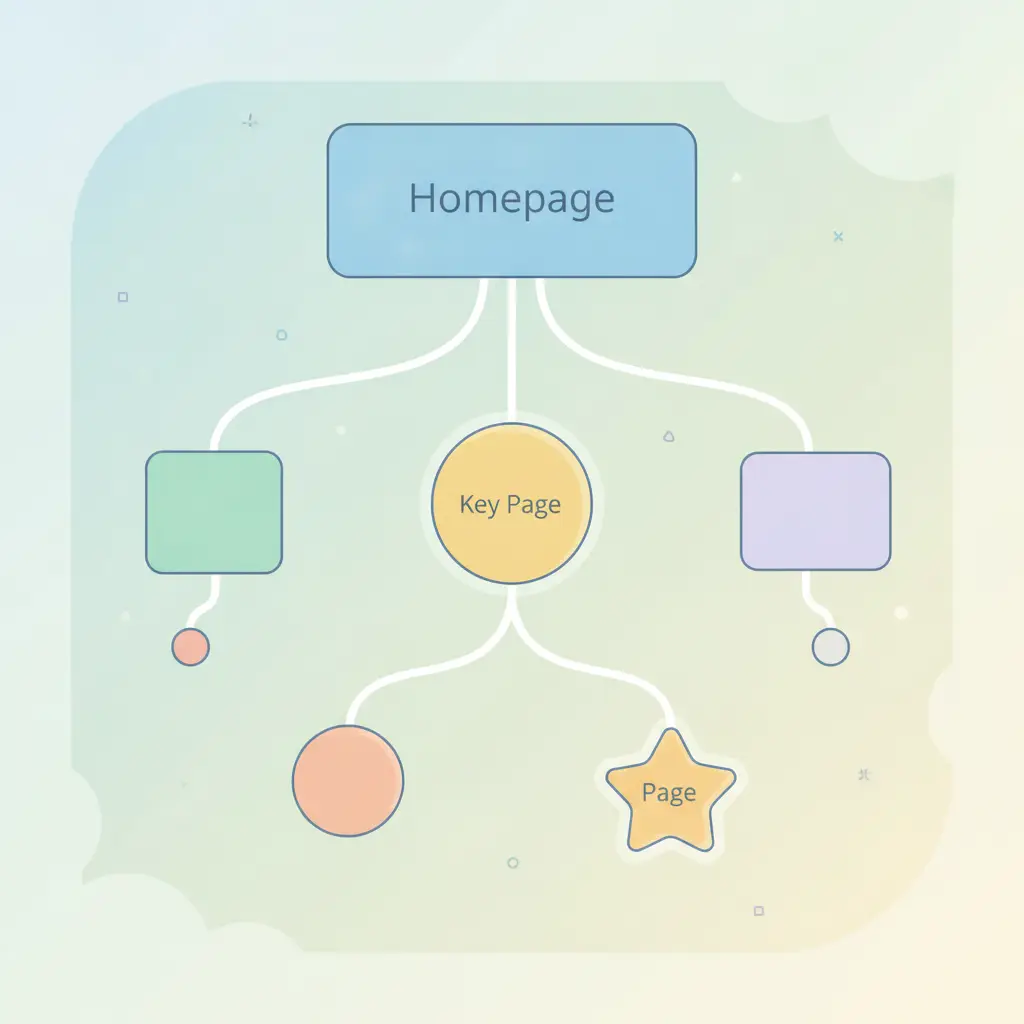
Delete the sample post, sample page and unused plugins and themes. Add the pages every small business needs: Home, About, Services (or Shop), Contact, and a privacy policy. Then set up a simple menu so every important page is reachable in one or two clicks.
After that, the real work is publishing useful content that answers the questions your customers ask. Pick one topic per page, use a clear heading structure, and write for a person first. If you run a shop, our guides on optimising WooCommerce product pages and writing product descriptions that rank are good next reads.
If you would rather not do all of this by hand, AutoXSEO for WordPress can fix titles, descriptions, image descriptions and schema across your pages and explain every change, with one-click undo.
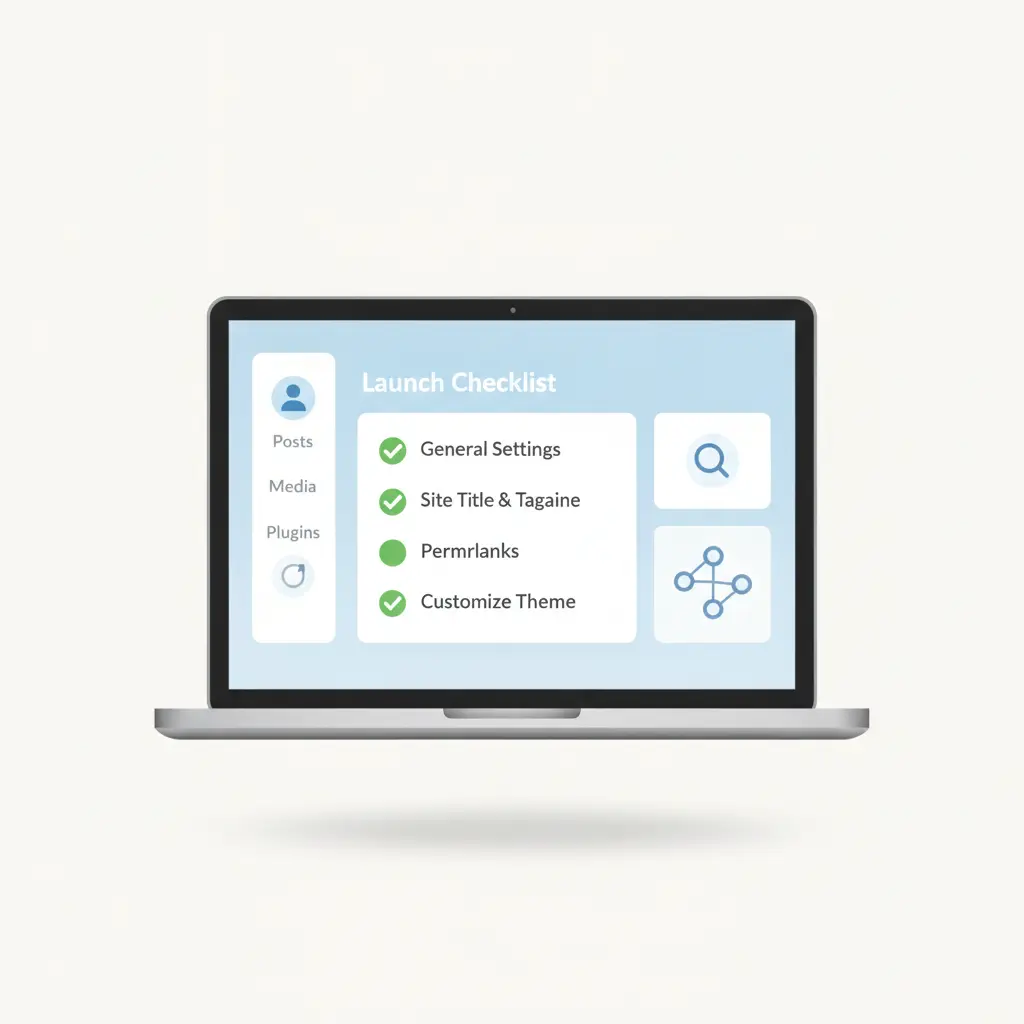
Your day-one checklist
- Search engine visibility is not discouraged.
- Permalinks set to Post name.
- Site title and tagline written.
- One SEO plugin installed and configured.
- Sitemap submitted in Search Console.
- HTTPS on, images resized, alt text added.
- Sample content deleted and core pages created.
Settings alone will not push you to page one, but they remove the roadblocks so your content has a fair chance. Once the foundation is solid, you can focus on what actually earns visitors: helpful pages, clear writing and steady publishing.
Frequently asked questions
What is the most important WordPress SEO setting?
Making sure the box that discourages search engines is unticked in Settings → Reading. If it is ticked, Google is asked not to index your site, and nothing else will help until you fix it.
Do I need an SEO plugin on a new WordPress site?
It is not strictly required, but one good plugin makes it much easier to control titles, meta descriptions, sitemaps and basic structured data. Install only one to avoid conflicts.
Which permalink structure is best for SEO?
Post name is the best choice for most small sites. It creates short, readable addresses that describe the page. Set it before you publish content so you do not need redirects later.
How long does it take for a new WordPress site to show up on Google?
It varies from a few days to a few weeks. Submitting your sitemap in Google Search Console and linking your pages together helps Google find them sooner, but no one can promise an exact timeline.
Can I get my new site recommended by AI assistants too?
Yes, the same foundations help: clear content, accurate business details and structured data. You can see how it works in our guide on how to get recommended by ChatGPT.