WooCommerce Category Pages: Setup for Better Search
Category pages often win the best search traffic in a WooCommerce shop. Here is how to set them up step by step so Google and AI assistants understand them.

To get your WooCommerce category pages ranking, give each category a clear name, a unique title and meta description, a short helpful intro written for shoppers, a clean URL, and links to and from the right products. That is the core of woocommerce category SEO. Category pages usually match what people search for ("women's running shoes", "organic dog treats") better than a single product page does, so they deserve real attention.
Below is a step-by-step setup you can finish in an afternoon for your most important categories.
Why category pages matter more than you think
Many shoppers don't search for one exact product. They search for a type of product, then compare options. A category page is built for that moment: it shows several choices in one place. When someone types a broad phrase, Google tends to prefer a page that lists many relevant items over a page about one item.
Category pages also pass strength to your products. They sit one click below your home page and link to every product inside them, so a well-built category helps your product pages get found and crawled. If you haven't yet worked on the products themselves, our guides on optimising WooCommerce product pages and writing product descriptions that rank pair well with this one.
Step 1: Choose one clear search phrase per category
Before you edit anything, decide what each category should be found for. Keep it simple:
- Use the words a customer would actually type, not your internal naming ("Mugs" beats "Drinkware Collection 2").
- Give each category its own phrase. If two categories target the same phrase, they compete with each other.
- Prefer the plain, common word over the clever one.
Write the phrase next to the category name in a simple list. You will use it in the title, the intro, the URL and the image descriptions.
Step 2: Fix the title, meta description and URL
In WordPress, go to Products > Categories and open a category. If you use an SEO plugin, you will see fields for the search title and meta description on that screen.
Title
Keep it under about 60 characters, put the main phrase near the start and add your shop name or a short benefit. Example: "Women's Running Shoes | Your Shop Name".
Meta description
Write one or two sentences, around 140 to 155 characters, that say what shoppers will find and why to click: range, delivery, returns or something real about your shop. Do not promise anything you don't offer.
URL (slug)
Use a short, readable slug such as /product-category/running-shoes/. Avoid stuffing it with extra words. Once a category is live and indexed, avoid changing its slug; if you must, set up a redirect from the old address.
Step 3: Add a short intro (and optional buying guide)
Many category pages are just a grid of products with no text. Search engines and AI assistants then have little to understand the page by. Add a description in the category's description box.
- Top of page: two or three sentences that say what the category contains and who it suits. Keep it short so shoppers still see products straight away.
- Below the products (optional): a few short paragraphs or a mini buying guide: how to choose a size, material differences, care tips, common questions.
Write for people first. Mention your main phrase naturally once or twice, and use related words a human would use. Don't copy the manufacturer's text, and don't repeat the same paragraph across several categories.
Step 4: Organise subcategories, filters and internal links
Structure helps both shoppers and search engines.
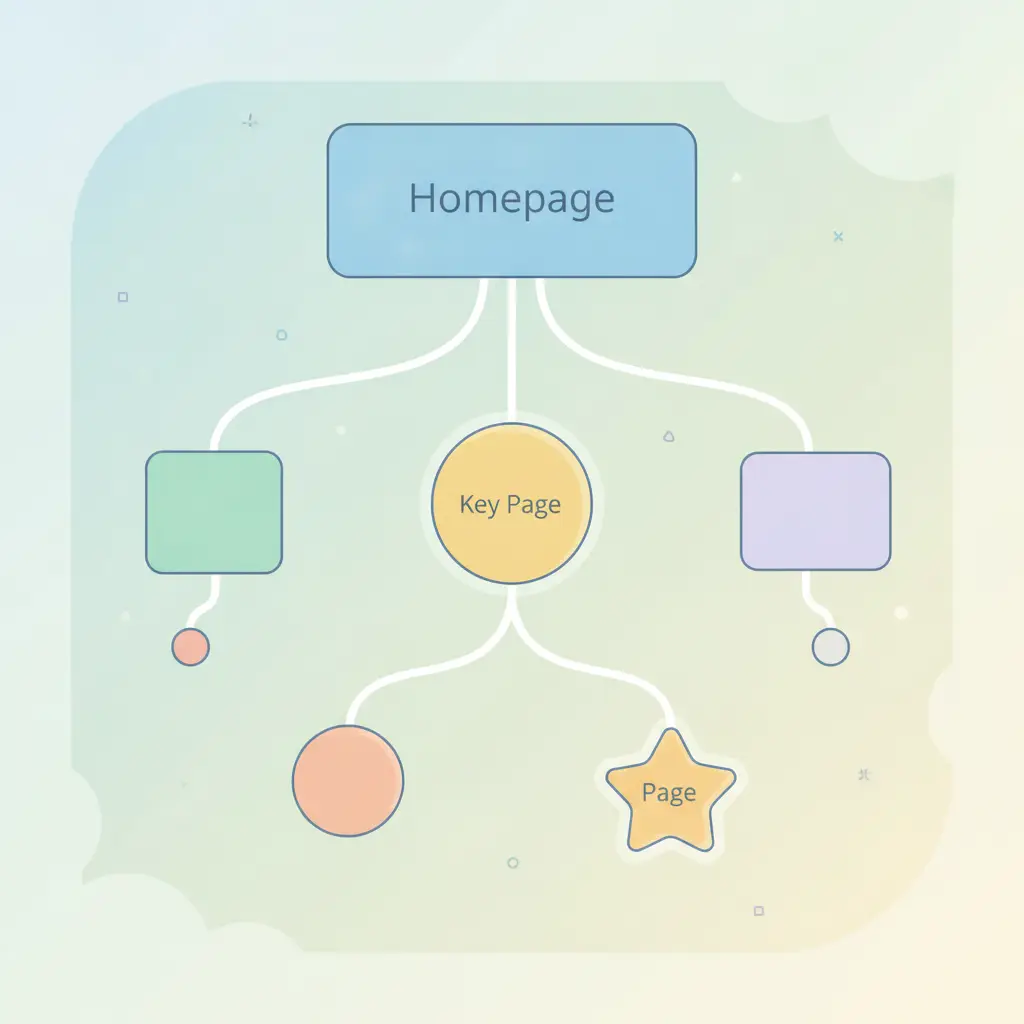
- Keep the hierarchy shallow. Aim for a main category and, where needed, one level of subcategories. Deep nesting hides products.
- Assign products to the most specific category. A product can sit in more than one, but avoid putting everything in every category.
- Link between related categories. A "Dog Beds" page can point to "Dog Blankets" in its intro text.
- Show breadcrumbs. They create helpful internal links and make the structure clear.
- Be careful with filters. Filters that create endless URL combinations (colour, size, price, sort order) can produce many near-duplicate pages. Make sure your SEO setup keeps those filtered versions from crowding the search results, and keep the main category page as the one you want found.
Also, link to your best-selling or most important categories from your home page and menu. Pages that are easy to reach are easier to rank.
Step 5: Handle pagination, images and speed
If a category has many products, WooCommerce splits it into pages. That is fine. Keep the intro text on the first page, and make sure each page loads quickly and links properly to the next and previous pages.
Give the category thumbnail and product images descriptive file names and alt text that says what is shown, such as "blue trail running shoe, side view". Compress images so the grid loads fast, especially on phones. Slow grids lose shoppers before they scroll.
Finally, remove empty categories. A page with no products is a dead end, so either add products or hide it.
Step 6: Make categories easy for AI assistants to understand
People increasingly ask assistants like ChatGPT for product ideas. Those tools favour pages that state clearly what a category is, who it is for and what makes the range different. Your intro text, clear headings and a short FAQ do most of this work. Our guide on making your website easy for AI assistants to read goes deeper, and you can use the AI visibility checker to see whether assistants currently recommend your business.
If you would rather not edit every category by hand, AutoXSEO can fix titles, descriptions, image descriptions and schema across a WordPress and WooCommerce site and explain each change with one-click undo.
A quick checklist to finish
- One main search phrase per category.
- Unique title and meta description.
- Short, readable URL.
- Helpful intro text, written for shoppers.
- Products placed in the most fitting category.
- Links between related categories and from the menu.
- Descriptive image alt text and fast loading.
- No empty categories and no duplicate filtered pages in search.
Start with your top three categories by sales, then work down the list. Results in search take time, so check back after a few weeks in Google Search Console and see which categories gain impressions.
Frequently asked questions
Should I add text to WooCommerce category pages?
Yes. A short intro of two or three sentences, and optionally a small buying guide below the products, gives shoppers and search engines context. Keep it unique and useful rather than long for its own sake.
Should category pages or product pages rank first?
For broad searches like "women's running shoes", category pages usually fit better. Product pages tend to win for specific model names. Optimise both so each can do its job.
Can I change a category URL slug?
You can, but it is best avoided once the page is indexed. If you change it, set up a redirect from the old URL to the new one so you don't lose visitors or search strength.
How many products should a category have?
There is no magic number. A category should be useful to a shopper: enough products to compare, but not so many that browsing is hard. Use subcategories or filters when a list gets long, and remove empty categories.
How long until category SEO changes show results?
It varies by site and competition, but expect weeks rather than days. Check Google Search Console for impressions and clicks on your category pages to see progress.